Content
🛠 Reporting Guide
This guide explains how to report a maintenance issue in The Edge community.
How to report an issue
The simplest way to report a problem is by email.
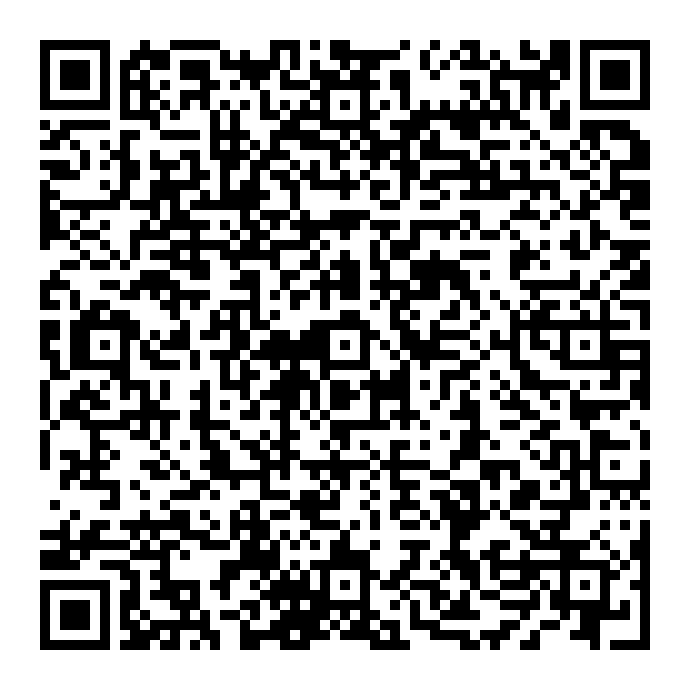
Click the Report a Maintenance Issue link or scan the QR code if available. A new email will open automatically with:
-
the correct recipient pre-filled
-
a short guidance template in the message body
Please then:
-
enter a short and clear title in the subject
-
describe the issue in the email body
-
attach photos, videos, or other relevant documentation if available
-
send the email
What happens next
A server-side process checks the reporting mailbox every 15 minutes.
Each incoming email is automatically converted into a Report item in the community issue tracking system.
If the sender’s email address belongs to a verified registered user, that user is recorded as the report author.
If the sender’s email address is not linked to a registered user, the report is created under Anonymous.
After the report has been processed successfully, a confirmation email is sent back to the sender. This confirmation includes a link where the report can be viewed and followed.
How reports are handled
Reports are first received in the Inbox project, which serves as the public reporting entry point for all reported issues.
Each report is then reviewed and assigned one of the following statuses:
-
New – the report has been received and is awaiting review
-
Processed – the report has been reviewed and accepted for further handling
-
Duplicate – the report refers to an issue that has already been reported and is being handled
-
Rejected – the report is not valid or does not require action
When a report is Processed, it is linked to a corresponding operational case in the internal Operations workspace.
Duplicate reports are linked to the original report for reference, without creating additional parallel tasks.
This approach helps keep the reporting process clear, avoids duplication of work, and ensures transparency for all owners.
Transparency
Owners with verified access can follow the progress of operational issues through the Private Area.
This provides transparency from the initial report through to review, planning, execution, and closure.
Good reporting tips
To help us process your report as quickly as possible:
-
use a short and specific subject
-
describe what is wrong as clearly as possible
-
include the exact location if known
-
attach a photo whenever possible
-
mention if the issue is urgent or creates a safety risk
Example
Subject: Portal door not closing properly
Description:
The main portal door in Block 3 P2 does not close properly and sometimes remains partly open. Please inspect.
Notes
Reporting by email was chosen as the main entry method because it is simple, familiar, and works on virtually every device without requiring a separate app.
To open the reporting email:
-
📱 Scan the QR code with your phone
-
💻 Click the QR code on your computer